

Local LLM Setup
With the Local-only preset, your writing never leaves your machine — the AI runs on a model server you install and control, on your own device. Here’s how to set it up, what each model does, and how to fix the common snags. For how this fits among the privacy choices, see Privacy & Data.
It’s desktop-only by design: a browser can’t safely run or hold local models, so this lives in the desktop app. It works best on Apple Silicon or a machine with a discrete GPU, since the models run on your own hardware.
Setting it up
Section titled “Setting it up”The easiest path is Ollama, a free app that runs models locally on macOS. Any OpenAI-compatible server works too (LM Studio, or your own) — see server types below.
- Install Ollama — and open it. Download it from ollama.com, then launch the app and leave it running (the menu-bar icon means its server is up). Installing alone isn’t enough: the server only runs while the app does. Wonderthrough detects it automatically.
- Open the checklist. Go to Settings → Keys & Models → Local Models. The page checks your setup on its own and shows exactly what’s missing.
- Add an embedding model. This powers World Search and character memory. Click “Pull it for me” on the Embedding model row and Wonderthrough downloads it with a progress bar — or run the shown
ollama pull nomic-embed-textyourself and click check again. - Add an analysis & text-generation model. This one produces summaries, suggestions, and structured analysis.
llama3.1:8bis a good starting point — use Manage models → Pull a model +, orollama pull llama3.1:8bin Terminal. - Turn on Local-only. In Settings → Privacy & Data, choose the Local-only preset. Back on Local Models, everything should read Connected and Working.
Ollama, LM Studio, or a custom server?
Section titled “Ollama, LM Studio, or a custom server?”Wonderthrough uses one local server at a time — all local AI (search and analysis) runs through it. Any OpenAI-compatible server works, but how you manage models differs:
-
Ollama (recommended) — fully managed: Wonderthrough can install, test, and remove models for you, right in Settings. Detected automatically.
-
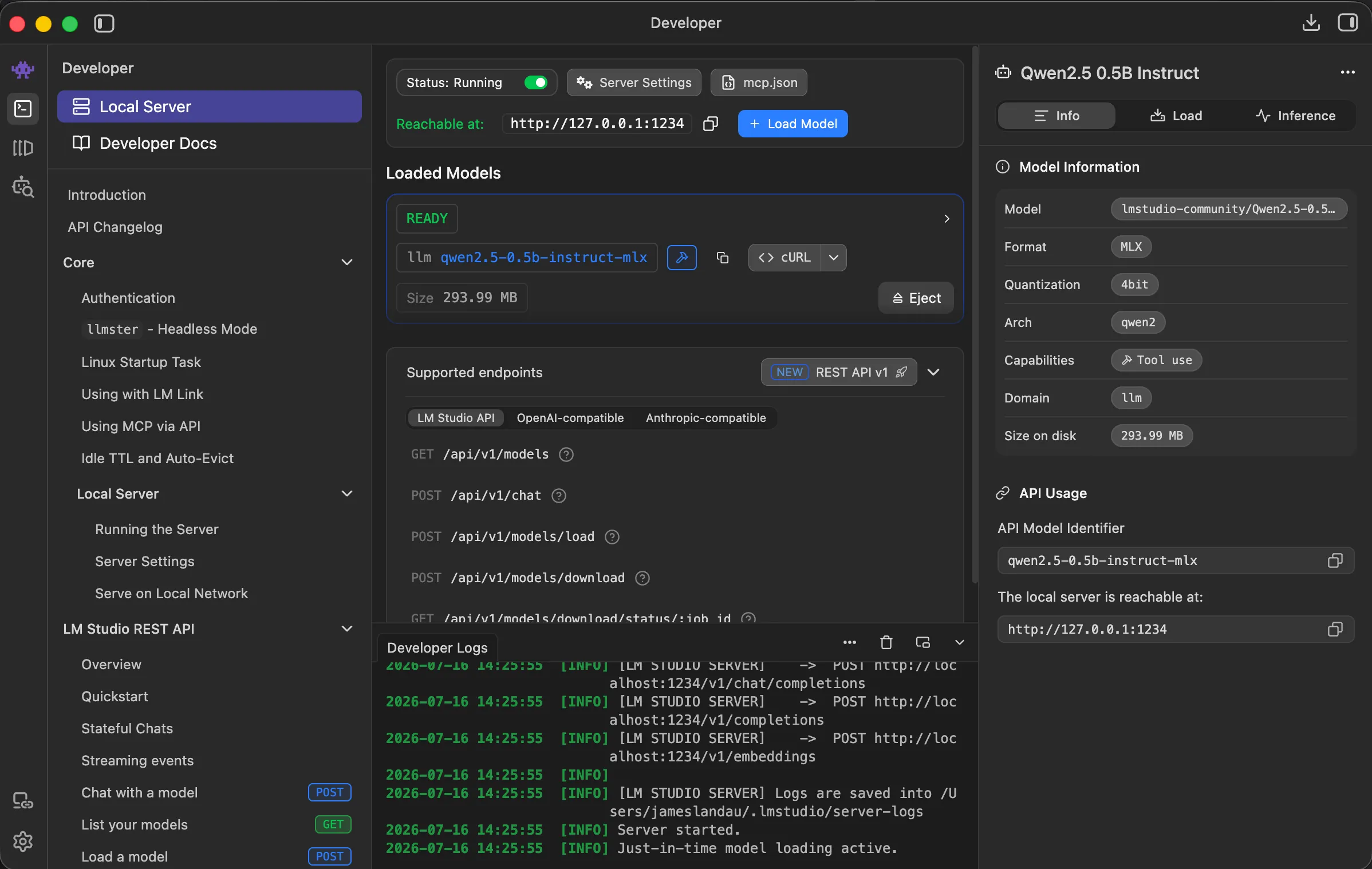
LM Studio — Wonderthrough lists and tests the models LM Studio serves, but you install and remove them in LM Studio’s own app. Wonderthrough points you there when a model is missing. To get it going: download it from lmstudio.ai/download and open it (recent versions greet you as “Bionic” — that’s LM Studio’s chat assistant; the server lives underneath). Download a model with its search, then open the Developer view (terminal icon in the left rail) → Local Server → flip Status to Running and Load Model. It serves at
http://localhost:1234/v1by default. In Wonderthrough, set that URL under Advanced server → Server URL, pick LM Studio as the server type so the guidance matches, and Test.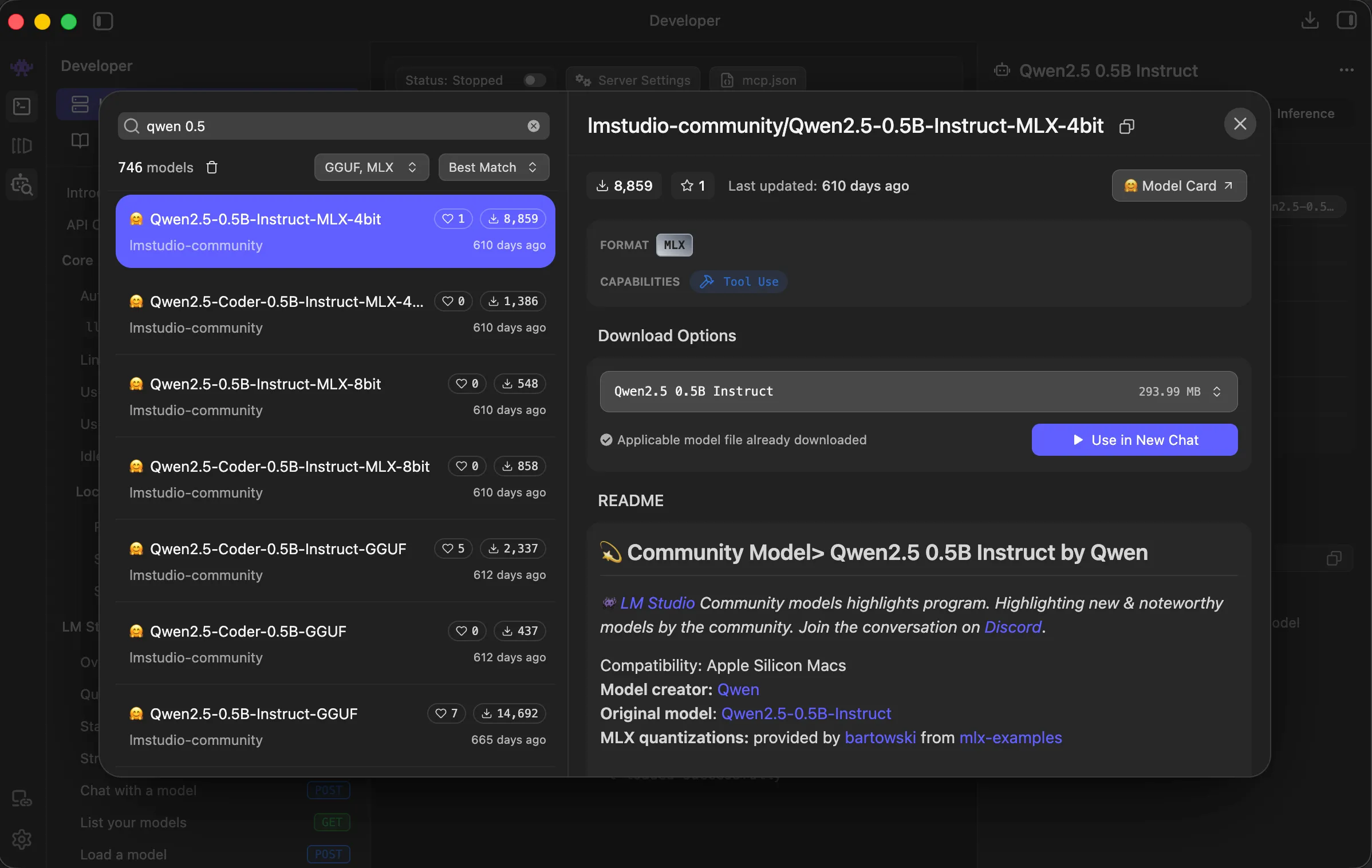
-
Custom — point Wonderthrough at any OpenAI-compatible URL: a self-hosted server, another machine on your network, or a remote one. Add an API key if your server needs one (it’s stored encrypted on this device only — never synced to your account). You manage the models on that server yourself; Wonderthrough tests what it finds. If the server isn’t on this device, your writing is sent to it over the network — the page labels this clearly and stops making the on-device claim. Only use a server you control, and prefer
https(anhttpconnection is unencrypted). This is the power-user path, with the fewest guarantees.
What each model does
Section titled “What each model does”- Embedding — reads your world. Turns your scenes and worldbuilding into a searchable index so World Search and character memory can find what’s relevant.
nomic-embed-textis small (~270 MB), fast, and recommended. This is the one global model choice on the Local Models page. - Analysis & generation — analyzes and writes. Produces summaries, suggestions, and structured analysis when you run a tool. Any chat-capable model works; pick which tools use which model in Settings → AI Tools.
Wonderthrough tests each model rather than trusting its name. Run test in Manage models runs a real probe — a model that can’t produce embeddings or a well-formed response is labeled so you can swap it before a long job. A freshly installed model reads Not tested until it’s probed (the embedding model is usually tested automatically when your server is on this device).
A note on quality
Section titled “A note on quality”Local models are private and free to run, but they’re not cloud models. Summarization and lighter tasks work well; complex analysis tools like Trajectory Inference or Book Synthesis may produce noticeably weaker results. Start with Chunk Summarization to judge quality on your own manuscript before relying on local models for deeper work.
Hardware guide: on an Apple Silicon Mac, 16 GB of RAM comfortably runs 7B-class models; 70B-class models want 32 GB or more. Bigger models are slower but usually more capable.
The local search index
Section titled “The local search index”World Search builds a private index of your writing on this device. You can see its size, rebuild it, or clear it any time under Settings → Privacy & Data → This device → Local search index. Because the index is built on this device, it doesn’t sync to the cloud — opening the same project on another computer builds a fresh index there.
Why would I rebuild it? If you change your embedding model, the old index was built a different way and won’t match. Changing the model in the picker rebuilds the open project right away and shows the progress; your other projects rebuild when you next open them — Wonderthrough notices and offers it. Rebuilding never touches your manuscript; it only regenerates the search index from your existing writing.
Troubleshooting
Section titled “Troubleshooting”These match the states you’ll see on the Local Models page:
| What you see | What it means | Do this |
|---|---|---|
| Not running | Nothing answered at the server address — Ollama isn’t running (or isn’t installed). | Open the Ollama app (install it first if needed), then “It’s running — check again.” |
| Connection failed | The server answered strangely or timed out. | Check the Server URL under Advanced server, make sure the server is healthy, then Try again. |
| Not installed | The server is up but the model you need isn’t on it. | Click “Pull it for me” (Ollama), run the shown ollama pull … command, or install it in your server’s own app. |
| Not tested | The model is installed but hasn’t been probed yet. | Click Run test in Manage models. The first test loads the model — large ones can take a minute or two. |
| Wrong role | The model can’t do that job (e.g. it failed the embedding test). | Pick or pull a model that passes — the embedding picker only offers models that passed. |
| Needs the server | The model rows can’t be checked because the server prerequisite is unmet. | Fix the server row first; the model rows light up after. |
| not on this device | Your server URL points at another machine. | Expected for a remote setup — your writing travels over your network to it. Use localhost to keep everything on-device. |
Removing a model (Manage models → Remove) deletes it from your server’s own storage permanently to free disk space — it doesn’t go to the Trash. You can always pull it again.
Cancelling a download mid-way is safe: the model isn’t registered (it won’t appear anywhere), the partial data resumes if you pull the same model again, and Ollama cleans up unused partial data when it next starts.
What stays private
Section titled “What stays private”When your server is on this device (localhost), your writing never leaves your machine — no scene, no character, no query is sent anywhere. The header of the Local Models page makes this claim only when it’s true.
Two things do use the network, and Wonderthrough says so first:
- Downloading a model contacts the model registry (e.g. Ollama’s) to fetch it — a one-time download of the model, not your writing.
- A non-loopback server. If you point Wonderthrough at a server that isn’t on this device, your writing is sent to it over the network (to your server — never to Wonderthrough or an AI provider). The page flags this and stops calling the setup “on this device.”
How this compares to the other presets
Section titled “How this compares to the other presets”- Standard uses Wonderthrough’s keys through our servers — the simplest setup, nothing to install.
- Private AI uses your own provider keys directly from the desktop app, so prompts skip our servers but still reach those providers.
- Local-only contacts no cloud provider at all.
Choose Local-only when keeping everything on your own machine matters most and you’re comfortable running a local model server.
Related help
Section titled “Related help”- For all three presets and the atomic privacy settings behind them, see Privacy & Data.
- For how World Search behaves on each preset, see World Search.
- For where AI keys are entered, see Billing & Credits.