

Import & Merge
Import helps you turn existing writing and project material into a working Wonderthrough project faster. It’s best when you already have scenes, notes, or a manuscript draft and want Wonderthrough to build structure around them instead of starting from a blank page.
What import is good for
Section titled “What import is good for”- bringing an existing draft into Wonderthrough
- turning source material into scenes and worldbuilding entries
- adding more material to a project you already started
- giving the World Agent and other AI tools real project context earlier
Import is an accelerator, not a magic cleanup pass. It can save a lot of setup time, but you should still expect to review the results and make edits afterward.
When you start an import, Wonderthrough first asks whether it may use your configured AI to find characters and places, or whether you want to skip AI extraction and import using the document’s structure instead. The card explains where the configured AI route sends your content. AI analysis runs only after you make that choice; reading a supported file without AI is a separate operation.
What you can import
Section titled “What you can import”You can bring in:
- Documents: Word (
.docx), RTF, HTML, Markdown, plain text and PDF. - Ebooks: EPUB (
.epub), on its own, in a folder, or in a ZIP archive. - Collections: folders, ZIP archives of folders, and Scrivener projects. On the web, select a
.scrivfolder or upload its.scriv.zip; on desktop, select the Scrivener project. - Google Docs: select documents or tabs through your connected account. Comments come in as notes.
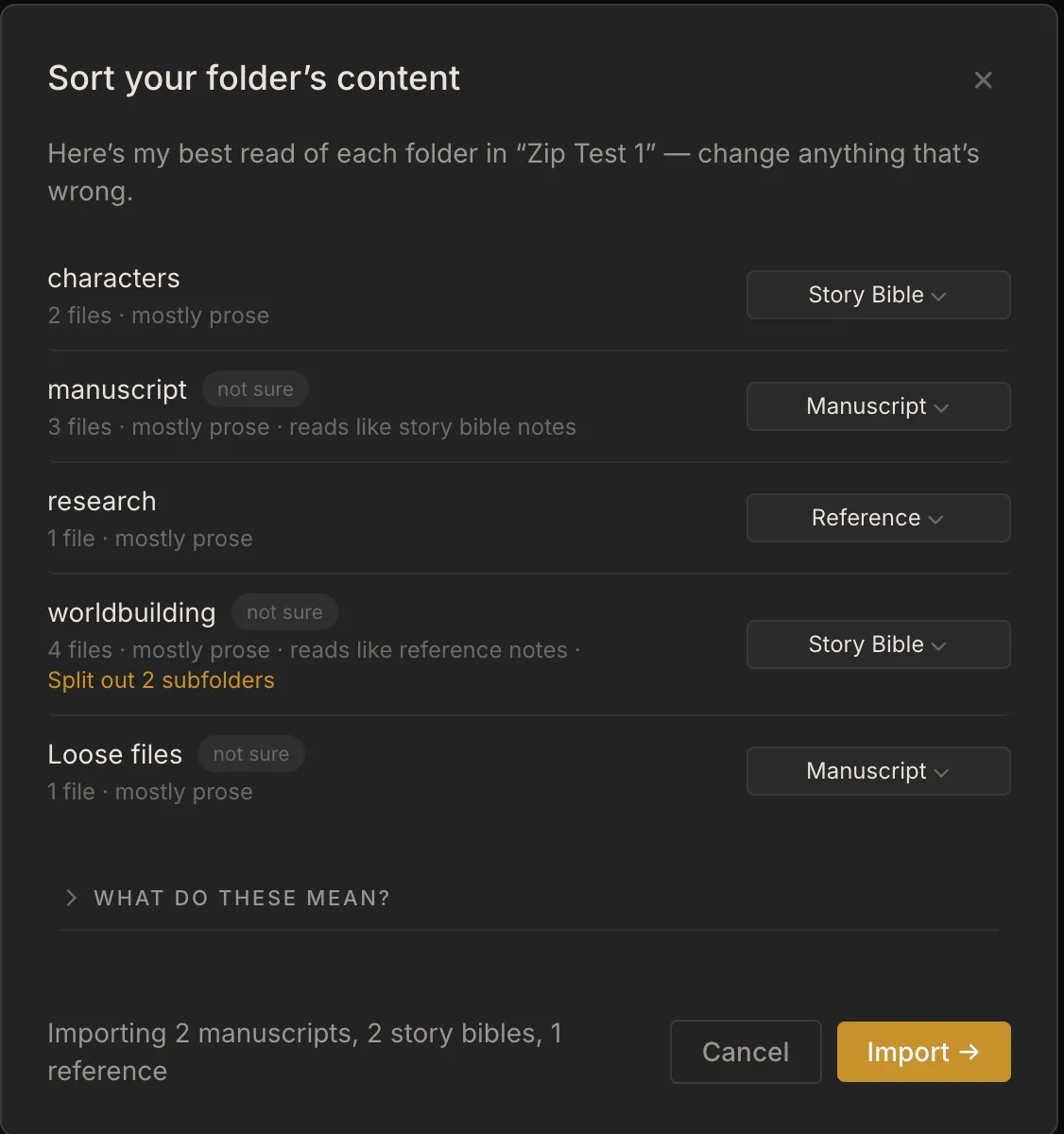
Review where the material should go: Manuscript, Story Bible, or Reference. Headings and collection structure help build the suggested organization, and you can correct it before confirming. PDF text can be imported when it can be read; a scanned PDF may need separately approved paid reading. The retained PDF preserves its pages, but importing its words does not extract every illustration or recreate its page layout.
Pictures in HTML and Markdown documents come along too. A picture embedded in the file, or stored in the folder you chose and referenced by the document, shows in the imported text like any other; the picture file itself is also kept in your book’s Sources. A picture file beside the document in a format the editor can’t show inline, such as a GIF or SVG, stays as a link in the text, and the file is still kept in Sources. If you choose a single document on its own, the pictures stored beside it aren’t included — the text keeps a link to each, and the Import Summary lists them. Pictures a document links to on the web are never downloaded; they stay as links, and the summary says so.
An EPUB comes in chapter by chapter, in the book’s own reading order and with its own chapter titles. A chapter its table of contents nests under a part sits inside that part. Pictures come along with the chapter they appear in. Contents pages, covers and Project Gutenberg’s front and back matter are suggested as Reference rather than manuscript, and you can change any of them before confirming. The .epub file itself is kept once in your book’s Sources. A copy-protected (DRM) or fixed-layout ebook, such as a picture book laid out page by page, can’t be read as text. It is kept as a file, and the Import Summary says why.
If you’re deciding between import and copy-paste, import is usually the better choice when you want Wonderthrough to preserve headings, scene boundaries, hierarchy, or source-linked context.
What is saved when I import a Google Doc?
Section titled “What is saved when I import a Google Doc?”New Google imports keep a capture of the selected document or tabs, plus separate originals of the images that could be downloaded. Open live document opens Google Docs; View saved copy opens the content kept in your project. Changes in Google Docs do not automatically update that saved copy. The source card’s menu also offers Open captured input, which opens the saved document data as JSON. It is not an exact visual export of the Google document.
If an image could not be saved, the card says so. Pictures in story bible and reference tabs stay where they were: successfully saved pictures appear in the saved copy, and each entity you accept shows pictures from its mapped section, and a tab that holds only pictures is kept as reference material. (An entity the AI finds without a section of its own has no pictures attached; they remain in the saved copy.) Older links may have no saved copy. Availability of original files on another device depends on source-file synchronization. A saved copy is not a promise of identical layout: if the formatted view is too large to store, the import keeps the text and captured input and reports the omission.
Fresh import vs merge into an existing project
Section titled “Fresh import vs merge into an existing project”There are two common ways to use import:
- Fresh import — best when you’re bringing a draft or source set into a new project for the first time.
- Import into an existing project — best when the project already exists in Wonderthrough and you want to add more material or continue migrating into it.
If you’re not sure which one to choose, use a fresh import when the imported material is the center of the project. Choose import into an existing project when it already has structure you want to keep. Adding material is separate from merging a source document’s details into an entity profile.
What Wonderthrough creates automatically
Section titled “What Wonderthrough creates automatically”Import can create or enrich several kinds of project structure for you:
- scenes and manuscript structure
- books or folders where the source implies hierarchy
- worldbuilding entities pulled from the material
- source-linked notes and follow-up opportunities
The goal is to give you a usable project quickly, not to make every editorial decision for you.
What happens to my Scrivener Research folder and metadata?
Section titled “What happens to my Scrivener Research folder and metadata?”Scrivener projects usually carry more than a manuscript — Research folders, character and setting sketches, clippings, PDFs, and per-scene metadata like a “POV Character” field. Wonderthrough lets you review how that material should be used:
- You review the organization. The shared sorting step lets you assign material to Manuscript, Story Bible (worldbuilding entries), Reference, or Don’t import. Review the suggested placement before confirming.
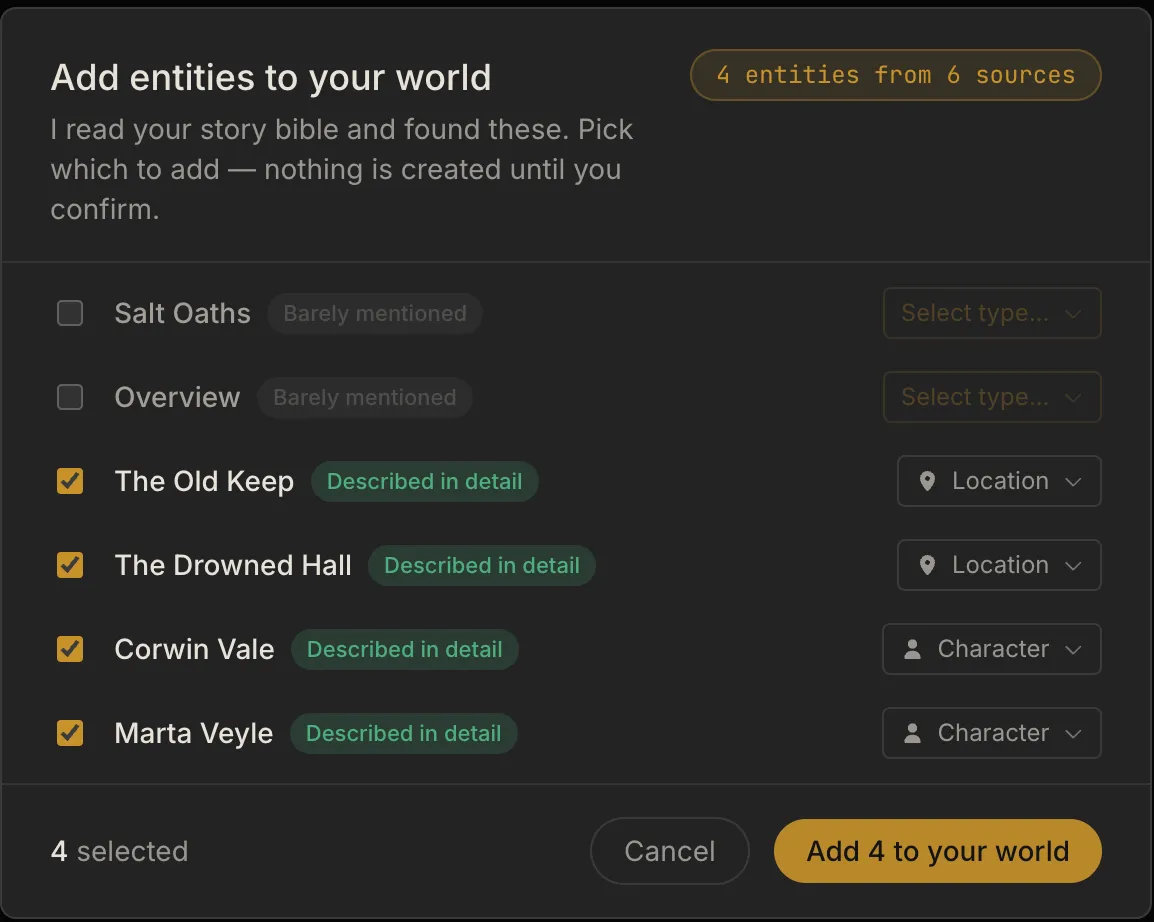
- Story Bible folders become entity suggestions. Each document surfaces as a suggested character, place, or other entity. You confirm, decline, or re-type each one — nothing is created without your say-so. Confirmed entities keep their source text attached so their details can fill in from it.
- Reference folders become sources. Their documents land in your book’s Sources panel, labeled as background for the AI — visible and searchable, but never turned into entities behind your back.
- Original documents are retained within the import limits. A document brought into the project keeps its original even when you decline its suggested entities. Files excluded from the import are different: excluding them does not promise a saved copy. Check the Import Summary for any original or dependency that could not be retained.
- Research files come along too. Files that fit the applicable attachment or image limits are retained. Anything that could not be brought in is listed on the Import Summary.
- Pictures inside your documents stay with their text. PNG and JPEG images embedded in a document render right in the imported prose. A format that can’t be shown inline (like a TIFF) isn’t lost: it’s kept as a file in the Sources tab of whatever its document became — the scene, the character, or the book — and the Import Summary tells you it’s there.
- Your scene metadata becomes scene connections. If your scenes carry fields like “POV Character” or keywords naming your characters and places, Wonderthrough connects the entities you confirmed to those scenes automatically. Only clear matches connect — if a name could mean two different entities, Wonderthrough leaves it for you rather than guessing.
This same sort-then-review flow is shared across import types (Scrivener, folders, and Google Docs), so you’ll recognize these steps whichever source you bring in:
When the import finishes, the Import Summary shows what came in — scenes, words, and any comments brought in as notes — along with anything that couldn’t be imported.
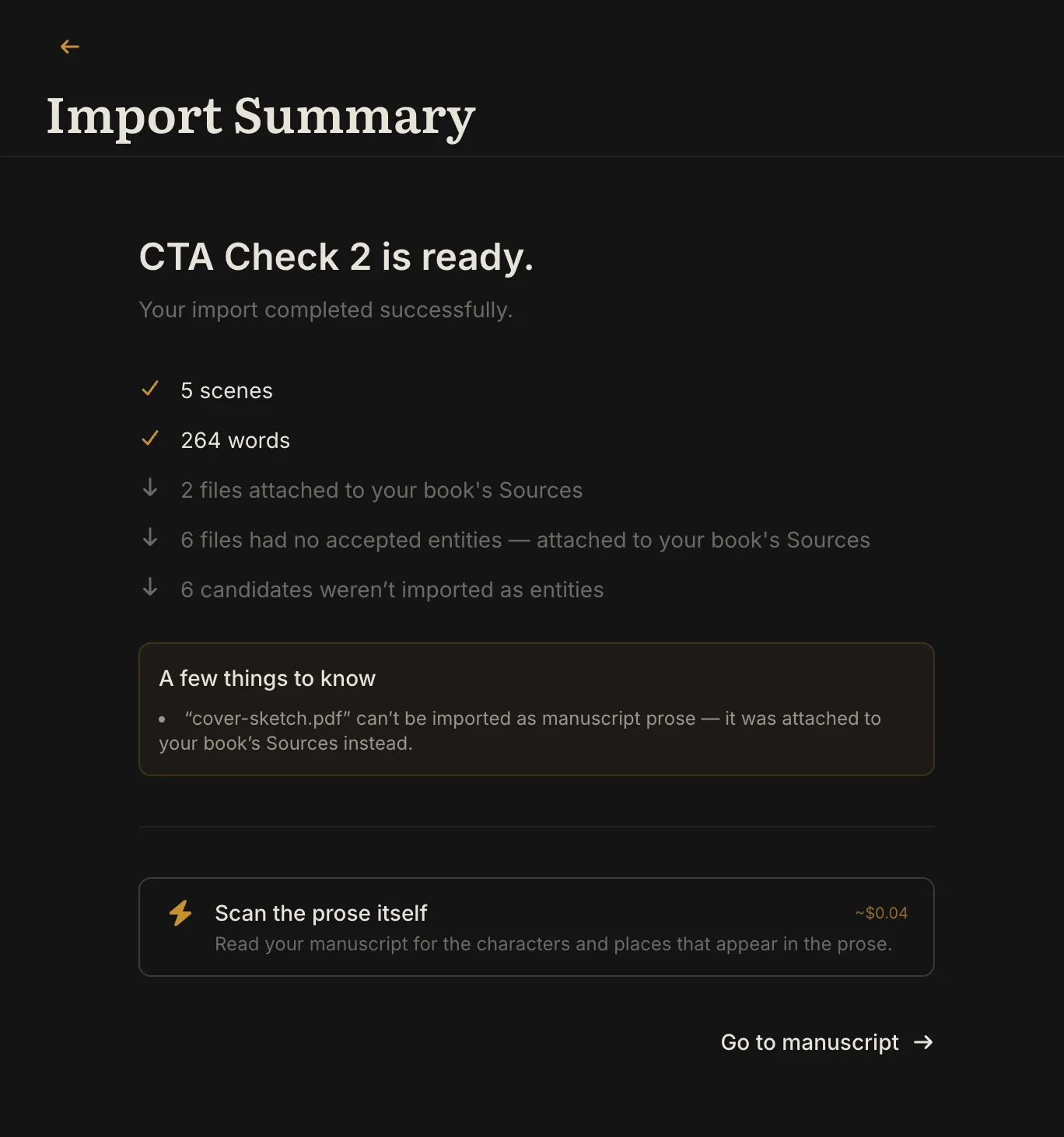
Canceling is not an undo of work already saved. Before any writes, canceling stops the import; after some material has been saved, that material remains and the receipt identifies the partial outcome. Inspect what is already present before importing again, to avoid duplicate content.
How large can an import be?
Section titled “How large can an import be?”Wonderthrough checks import size after it has turned your source into scenes, because formatting and scene metadata also travel with the text:
- Manuscript content, desktop and web: up to 4 MiB of finalized scene content and its metadata in one batch. This is not the size of the original document, and an input exactly at a limit is accepted.
- Scrivener on the web: the
.scriv.ziparchive or selected.scrivfolder can contain up to 80 MB of decoded/extracted files, and the processed result sent back to the browser can be up to 8 MiB. Folder selection is a convenience and uses the same limit as zip upload. - Web Scrivener package safety: one project can contain up to 8,000 files and folders, and extremely long or deeply nested file paths may need to be shortened before upload.
- Original files and Research attachments: up to 25 MiB per retained file. Images have a separate 10 MiB limit.
- PDF text decoding: up to 10 MiB of input and 1,000 pages. A PDF may fit the original-file limit while exceeding the free decoding limit.
- Generic folder ZIPs: up to 80 MiB compressed, 250 MiB of kept expanded files and 10,000 entries. ZIP extraction also has a 10 MiB per-file bound, so a file may fit the original-retention limit but be too large to extract from that ZIP. The Import Summary distinguishes text that imported from an original file that could not be kept. For example, a larger Word document may supply text even when its original is too large to retain; that is not a guarantee that every oversized or unreadable document can be decoded. If a ZIP entry exceeds its extraction limit, try supplying that file separately or through a folder, subject to the remaining limits.
If Wonderthrough says the manuscript itself is too large, split it by part or chapter and import the pieces separately. For a web Scrivener size error, you can also remove large embedded files or use the desktop app. If a project under 80 MB is rejected, read the specific message: it may contain too many files and folders, or one of its nested paths may be too long. Reduce the file count or shorten the named folder structure before retrying. A refusal before persistence adds no manuscript content; if a later stage fails, check the receipt for material already saved.
What “merge” means
Section titled “What “merge” means”Adding files to an existing project preserves its existing structure and adds the imported material. During review you can create a new world entry or link a document to an existing one. That link keeps the document attached as a source; it does not automatically overwrite the entry’s profile fields.
Source merge is the later action that reads attached documents and proposes profile details for you to review. Its AI approval and cost are separate from importing or viewing a document.
Names you already have
Section titled “Names you already have”When imported material mentions someone or somewhere already in your world, Wonderthrough connects it to the entry you have instead of creating a second one.
- If the name matches exactly, or matches an alternate name you recorded, it’s connected for you and the import summary tells you which entries those were.
- If the match is only close — “Vance” where you have “Elara Vance” — you’re asked, because that could as easily be someone new. You choose the existing entry or create a new one.
- If a name matches more than one entry, Wonderthrough never picks. You’ll see the options and decide.
For story-bible material, connecting also files that document on the existing entry as a source, so you can merge its details into that profile later. For manuscript prose, it connects the character to the scenes they appear in — the writing itself stays where it is.
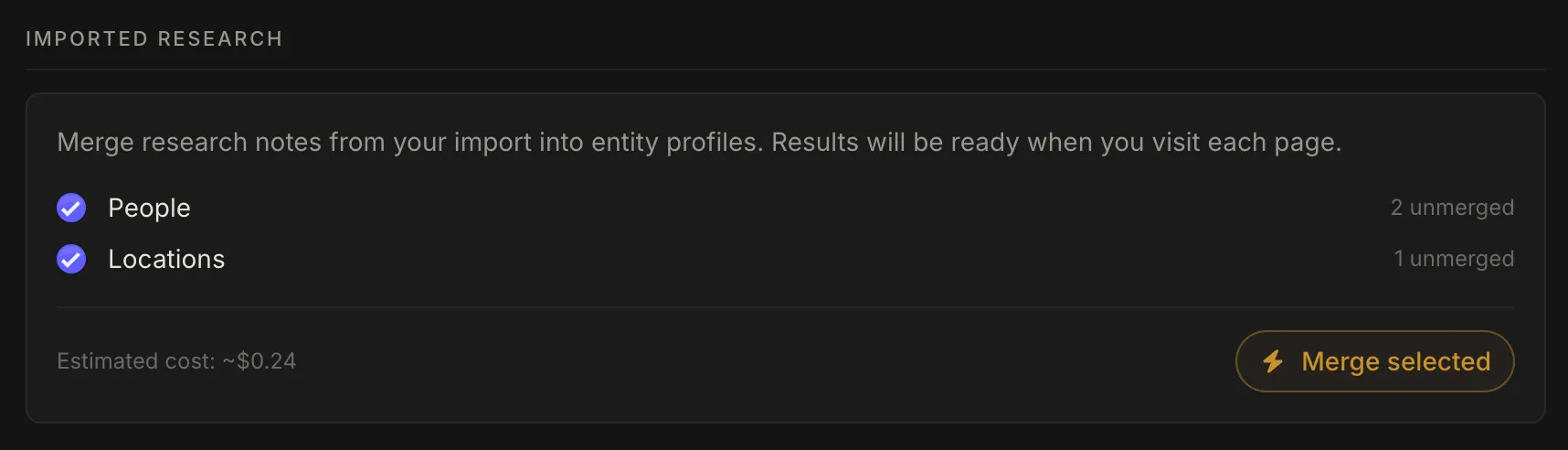
When an import brings in research or story-bible material tied to entities, the Imported Research section on your World Overview lets you merge those source notes into the matching entity profiles in one pass — you pick which to run.
Each document is its own run, so the section tells you both numbers before you start — how many documents, and how many profiles they belong to — and shows the cost for exactly the documents you picked. A character with two documents attached gets both. If you already merged one of them somewhere else in the meantime, it’s skipped rather than paid for twice, and the summary afterwards says how many merged, how many were already handled, and how many didn’t go through.
What still needs manual review after import
Section titled “What still needs manual review after import”After import, the most useful first pass is usually:
- scan for duplicate or split entities
- check whether scene boundaries landed where you expect
- review major characters, places, and important source material
- look at any follow-up prompts or opportunities the app surfaces
This is normal. Import is meant to get you most of the way there, not to remove your judgment from the process.
Common import issues
Section titled “Common import issues”What happens if I import with a name I already use?
Section titled “What happens if I import with a name I already use?”Wonderthrough asks instead of guessing: you’ll see the existing project’s details and can import as a new copy (the new project gets a numbered name like “Wintermoor (2)”), replace the existing project after an extra confirmation, or cancel. Replacing is permanent, so the prompt always shows you exactly which project you’re replacing — and if several projects share the name, you pick the specific one first. Your project is always named what you typed; the document’s own title becomes the book title inside it.
Why did I get duplicate characters or places?
Section titled “Why did I get duplicate characters or places?”Usually because the source material referred to the same thing in more than one way, or because the existing project already had a version Wonderthrough couldn’t safely auto-merge. Review the candidates and merge or delete what you don’t need.
Why are my scene boundaries imperfect?
Section titled “Why are my scene boundaries imperfect?”Imports are only as clean as the structure in the source. If headings, separators, or scene breaks are inconsistent, Wonderthrough may create boundaries you want to adjust manually.
Why does imported material feel incomplete?
Section titled “Why does imported material feel incomplete?”Some details are easier for the app to infer than others. Import is strongest when the source has clear structure and repeated signals. Thin notes or loosely formatted material usually need more human cleanup afterward.
Why is a character already listed on my scenes?
Section titled “Why is a character already listed on my scenes?”If your Scrivener scenes carried metadata naming that character (like a “POV Character” field or a keyword), the import connected them for you. The connection is real but conservative — see the next question.
Why doesn’t an imported character show up in generated scene images?
Section titled “Why doesn’t an imported character show up in generated scene images?”Characters connected during import are marked as referenced in the scene, not confirmed as physically present — a metadata field says the scene is about them, but not whether they’re on stage. Image generation only draws characters who are actually present, so imported characters won’t appear in scene art until either you adjust their presence in the scene’s details, or you run scene analysis, which reads the prose and upgrades characters it finds genuinely present. This is deliberate: guessing wrong would put characters in art for scenes they never appear in.
Re-import vs manual cleanup
Section titled “Re-import vs manual cleanup”Re-import is usually worth it when:
- you imported the wrong source or the wrong version
- the original source got significantly cleaner
- you are still early enough that starting fresh is cheaper than tidying
Manual cleanup is usually better when:
- the project is already mostly correct
- the remaining work is about judgment, naming, or organization
- you don’t want to risk introducing a second round of duplicate structures
Using a document you already have
Section titled “Using a document you already have”A supported document in Sources can be used later, whether it was imported or attached manually. Choose Use this document on its source card or in the Source Viewer, then choose a destination. The same destinations are also available in the ⋮ menu:
- Add to manuscript turns its text into new scenes at the end of a book. You see how many scenes it will make, and their headings, before anything is written. If your project has more than one book, you choose which one right there in the same sentence; with a single book there is nothing to choose and it just says where the text is going.
- Add to your world reads it for entries — characters, places, and so on — and shows you each one to accept or skip before anything is created.
Your original is always kept. Choosing a destination never removes the document from Sources, and a retained original is still available through Open original when its file is available on this device.
Pictures come along too, and each entry gets its own. If the document has illustrations, they travel with the text and stay where they were in it. A document covering several subjects now works the same way: the picture beside a character’s paragraphs goes to that character, and the one beside another’s goes to theirs. The same picture used in two places arrives in both. Nothing is copied or re-uploaded, and the original keeps everything it had.
Two cases still send the words without the pictures, and the original always keeps them:
- You edited the document after reviewing the entries. Wonderthrough will not attach illustrations from a version you did not see. Pick the destination again to use the current text.
- The document uses formatting Wonderthrough cannot carry across exactly — a table, most often. Rather than alter your words to fit, it moves the text unchanged and leaves the pictures in the original.
Do I have to prepare a document first?
Section titled “Do I have to prepare a document first?”No. If a document was attached without its text being read yet — a PDF you dragged in, for example — it is read when you pick a destination. There is no separate step, and for an ordinary document whose text a computer can select, reading it costs nothing.
There is one exception, and it always asks first: a document whose pages are pictures of text — a scan, or photographed pages. There is nothing to select on those pages, so the words have to be read off the images, and that does cost. Wonderthrough shows you the price and how many pages it covers before anything is read, and nothing is charged unless you agree. See Can Wonderthrough read a scanned document? below.
Reading it is not the whole job, though. Finding world entries in it, and the optional pass that recognises people and places in new scenes, are separate steps that ask you first — so if one of those asks, that is expected rather than something going wrong.
Why does it say no text could be extracted?
Section titled “Why does it say no text could be extracted?”The free decoder found no usable text. A scan is one possible reason; an empty or unreadable document can have the same result. Your source stays in Sources. If page reading is available for that document, it can be offered separately — see the next answer.
Can Wonderthrough read a scanned document?
Section titled “Can Wonderthrough read a scanned document?”Yes, for supported scanned PDFs. Reading words from page images is a paid action and always asks first. Any later AI extraction or profile merge has its own approval.
Pick a destination for the document as usual. The first time, Wonderthrough checks the document for free and finds that its pages are pictures. Choose the destination again and you are shown a price and the number of pages it covers. Nothing is read and nothing is charged until you agree to that.
While it runs you can stop it. Pages that were already read are kept — they are saved to the document as they are finished, not at the end — and you are charged only for what was read. If a section fails partway through, that section is not charged, and the pages that did come through are still saved. Either way you can pick up later: choosing the destination again offers a fresh price covering only the pages that are still missing, so you never pay twice for the same page.
A long document is read in sections, and a large one may take a few passes — each pass tells you how much of the document is left.
Two things it will not do. It will not read a document whose original file is no longer available, because it works from the original pages. And if the saved text has been edited since the last read, it stops and says so rather than guessing where the new pages belong — your text is left exactly as you wrote it.
Does a document with pictures in it come across?
Section titled “Does a document with pictures in it come across?”Supported DOCX/RTF and HTML/Markdown figures can travel with the document’s text through free preparation and conversion. Google saved documents reuse their retained figures. A PDF’s original pages keep their illustrations, but PDF text extraction does not turn those illustrations into editable figures.
Preparation may stop if required image files are missing, an image cannot be saved, or the complete formatted result exceeds what can be stored. It preserves the original and existing usable content; a successful text-only import is not a promise that its formatted view is identical. Read the specific message before retrying. Bundled documents need their required members available, not only the file containing their text.
The confirmation discloses unsupported figure placement, such as a layout it cannot safely project onto the destination. Unsupported inline image formats may remain in the retained original or as file attachments. Inspect the saved copy and receipt for the particular document.
Why does it say a file is on another device and hasn’t synced here yet?
Section titled “Why does it say a file is on another device and hasn’t synced here yet?”The source is listed, but the file itself has not reached this device. A source’s details sync before its file does, so a file added on another device can appear in your Sources before it can be opened here. It arrives once the device that has it has synced and, on a desktop, while Cloud Sync is on for that project there. Text already saved in the project is still usable; opening the file, or preparing it as a document, needs the file itself.
If opening or reading a file fails for any other reason, you’ll see “Couldn’t open this file.” instead.
Related help
Section titled “Related help”- For project export and restore formats, see Export & Backup.
- For privacy implications of full-project archives, see Privacy & Data.